 Client Portal

Key takeaways
- Schedule send lets you write after hours and deliver during business hours, which also respects your team’s right to disconnect.
- Typing @ and a name in an email adds that person and tells them the message needs them.
- Rules move routine mail out of the way, and a rule nobody remembers creating is a warning sign worth reporting.
- The Report button sends a suspicious email to the people who can act on it, instead of quietly deleting it.
- A flag turns an email into a follow-up with a date, so it no longer depends on memory.
Ask any business owner on Microsoft 365 and Outlook is open on every desk all day, yet most teams use a fraction of what it can do. None of the five features below costs anything extra: they are already in the Outlook you pay for. A few minutes saved per person per day sounds small, but across a 20-person team it adds up to several hours a week.
The steps below are for the new Outlook for Windows and Outlook on the web. Classic Outlook has the same features, with some of the menus in different places.
1. Schedule send
Write the email, select the arrow beside Send, choose Schedule send and pick a time. The message waits in Microsoft 365 and goes out when you said, even if your laptop is closed by then.
It is the simplest way to clear your inbox at 9pm without teaching clients and staff to expect 9pm replies. It also sits well with the right to disconnect: under the Fair Work Act, employees can refuse to monitor, read or respond to contact outside their working hours unless refusing is unreasonable. That has applied to employers with 15 or more staff since 26 August 2024, and to small businesses since 26 August 2025 (Fair Work Ombudsman). Scheduling a late email for the morning is not a legal requirement, but it is an easy courtesy.
2. @mention someone
In the body of an email, type @ and start typing a colleague’s name, then pick them from the list. Outlook adds them to the To line, and the message shows an @ symbol in their inbox so they know it needs them. They can also filter their inbox to see only the messages that mention them.
On a long email to a group, “@Sam, can you confirm the delivery date?” does in one line what used to take a separate follow-up email, and it ends the “was that one for me?” replies.
3. Use rules to tame your inbox
Right-click a message, choose Rules, then Create rule, and tell Outlook what to do with mail like it: move it to a folder, mark it as read, or flag it. You can see and edit all your rules under Settings, Mail, Rules.
Think of a 20-person trades or logistics business in Carrum Downs, where job alerts, supplier invoices, delivery notifications and newsletters all land in the office manager’s inbox. Three rules that file the routine mail into folders leave the inbox for the emails that actually need a person.
One caution worth passing on to the team. When someone breaks into a mailbox, one of the first things they often do is create rules that hide replies or forward mail elsewhere, so the real owner does not notice. If you find a rule you did not create, do not just delete it: tell your IT provider straight away, because it can mean someone else has been in the account.
4. Report suspicious emails
Select the message and choose Report, then Report phishing (or Report junk for plain spam). The message leaves your inbox, and depending on how your business has it set up, the report goes to Microsoft, to your IT team or provider, or both.
Reporting does more than deleting. Deleting protects one inbox; a report can show that the same scam has reached five people, so it can be cleaned out of every mailbox and blocked. In a business account the built-in Report button only appears when your administrator has switched on user reporting (Microsoft Learn), so if you cannot see it, ask your IT provider to turn it on.
And if an email asks you to change bank details or pay something urgently, even from a colleague or supplier you know, call them on a number you already have before you do anything. Reporting is the second step, not the only one.
5. Flag it, don’t forget it
Hover over a message and select the flag, or right-click it and choose Flag. In classic Outlook you can pick a due date, such as today, tomorrow or next week, and add a reminder. Flagged emails can also show up in Microsoft To Do, so your follow-ups sit on one list instead of scattered through the inbox.
An inbox makes a poor to-do list, because the email you meant to come back to scrolls out of sight by lunchtime. A flag keeps it in front of you until it is done.
Getting the whole team using them
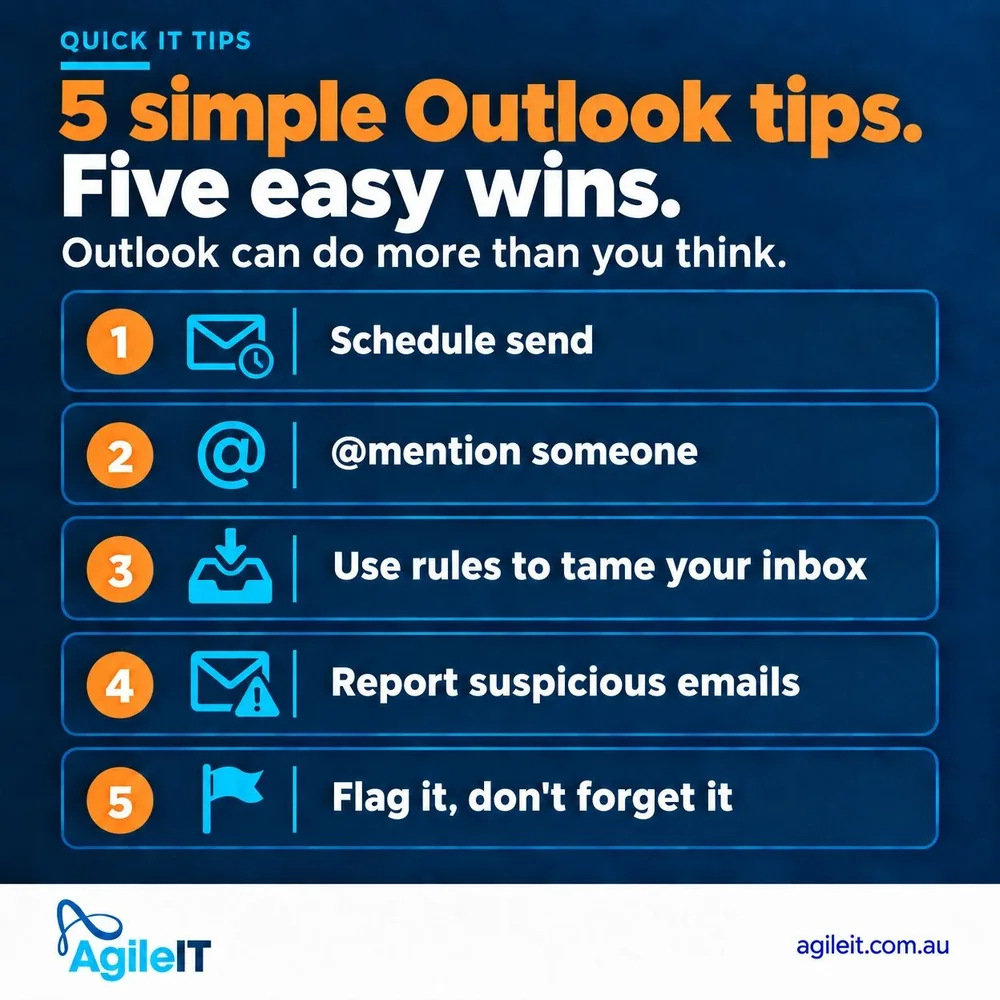
None of this needs a training day. Pick one tip a week and show it at the team meeting, or share the card below in your Teams channel. The Report button is the one to start with, because it is the only one of the five that protects the business as well as saving time.
Agile IT is based in Mornington and looks after Microsoft 365 for businesses across Melbourne and the Peninsula. For the businesses we manage under AgileMANAGED, “how do I do this in Outlook?” is a perfectly good reason to call us. If your team is getting less out of Microsoft 365 than it should, start with a conversation.